Utilizing Self-Service Password Reset
Microsoft Self-Service Password Reset
What it is
In order to utilize this self-service password reset, you had to first add contact information for Microsoft to identify the owner of the account. The FAQ for adding these authentication methods can be found via https://helpdesk.marian.edu/support/solutions/articles/17000069746.
Utilization
After configuring your authentication methods, you can reset your password whenever needed by browsing to https://passwordreset.microsoftonline.com/
1. Enter your full Marian email address and the characters in the captcha and select next
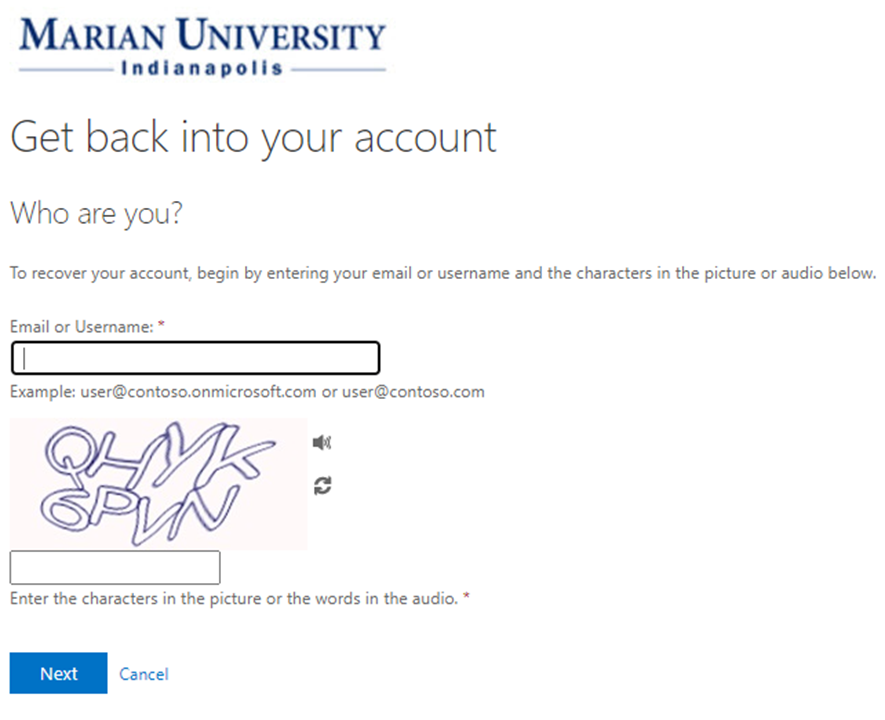
2. Select the desired method of verification to receive a code (phone and email) or answer security questions and reset the password
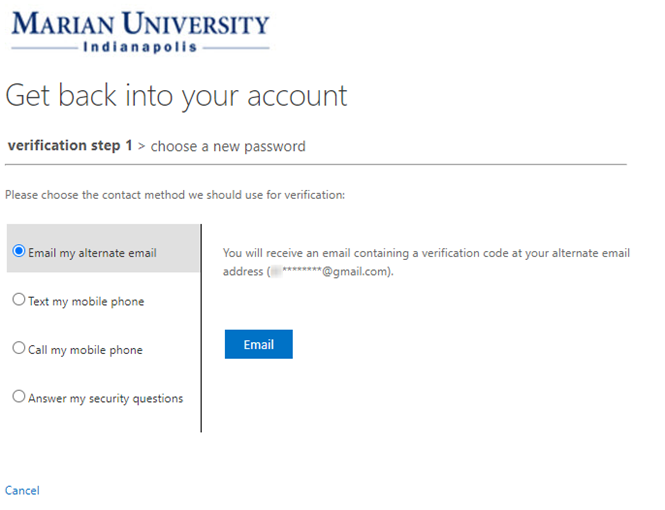
Get an email with a code sent to your alternate email address
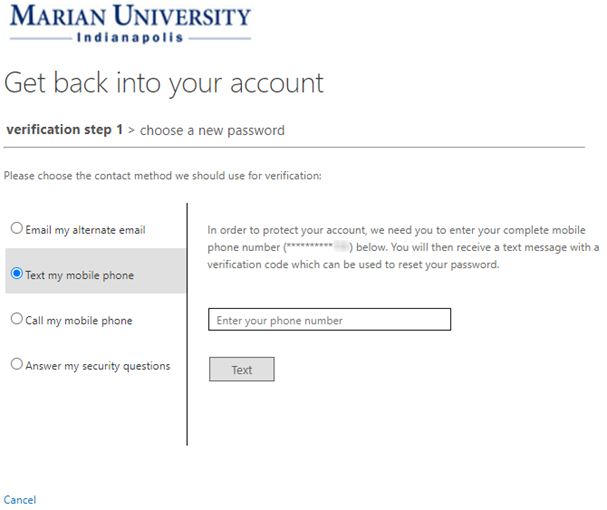
Verify the phone number provided to receive a code via call or text
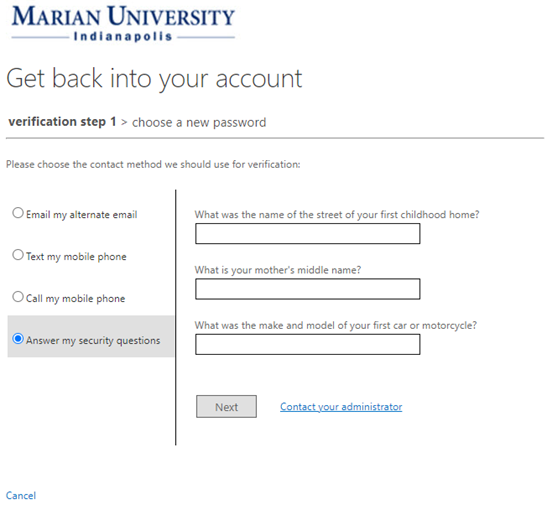
Answer the security questions provided previously
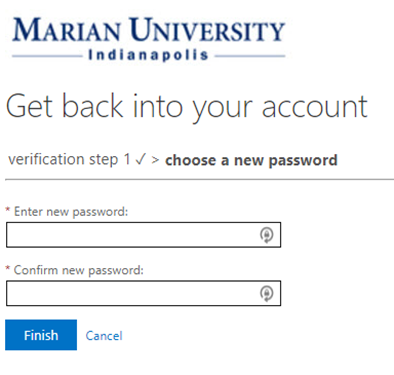
3. Enter a password that meets the requirements for length (at least 12 characters), complexity (contains at least 3 of the following 4 types of characters: uppercase letter, lowercase letter, number, and symbol), and history (cannot be any of your previous passwords) and select finish
4. Once your password has been reset successfully, you will see the message below and your password will grant you access to all Marian systems! You will also receive a notification email to your alternate email address letting you know that your password has been updated